> ## Documentation Index
> Fetch the complete documentation index at: https://help.teable.ai/llms.txt
> Use this file to discover all available pages before exploring further.

# Azure Entra ID SSO

> 配置 Azure Entra ID 作为 Teable 的 SSO 认证提供商

<Tip>适用于商业版及以上版本</Tip>

## 步骤 1：在 Teable 中创建认证提供商

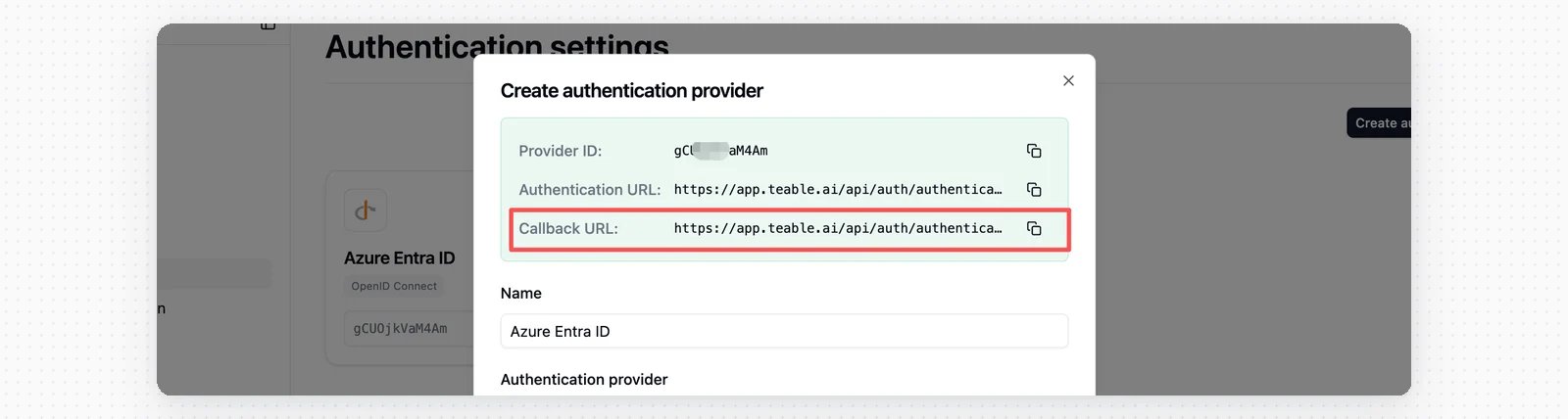
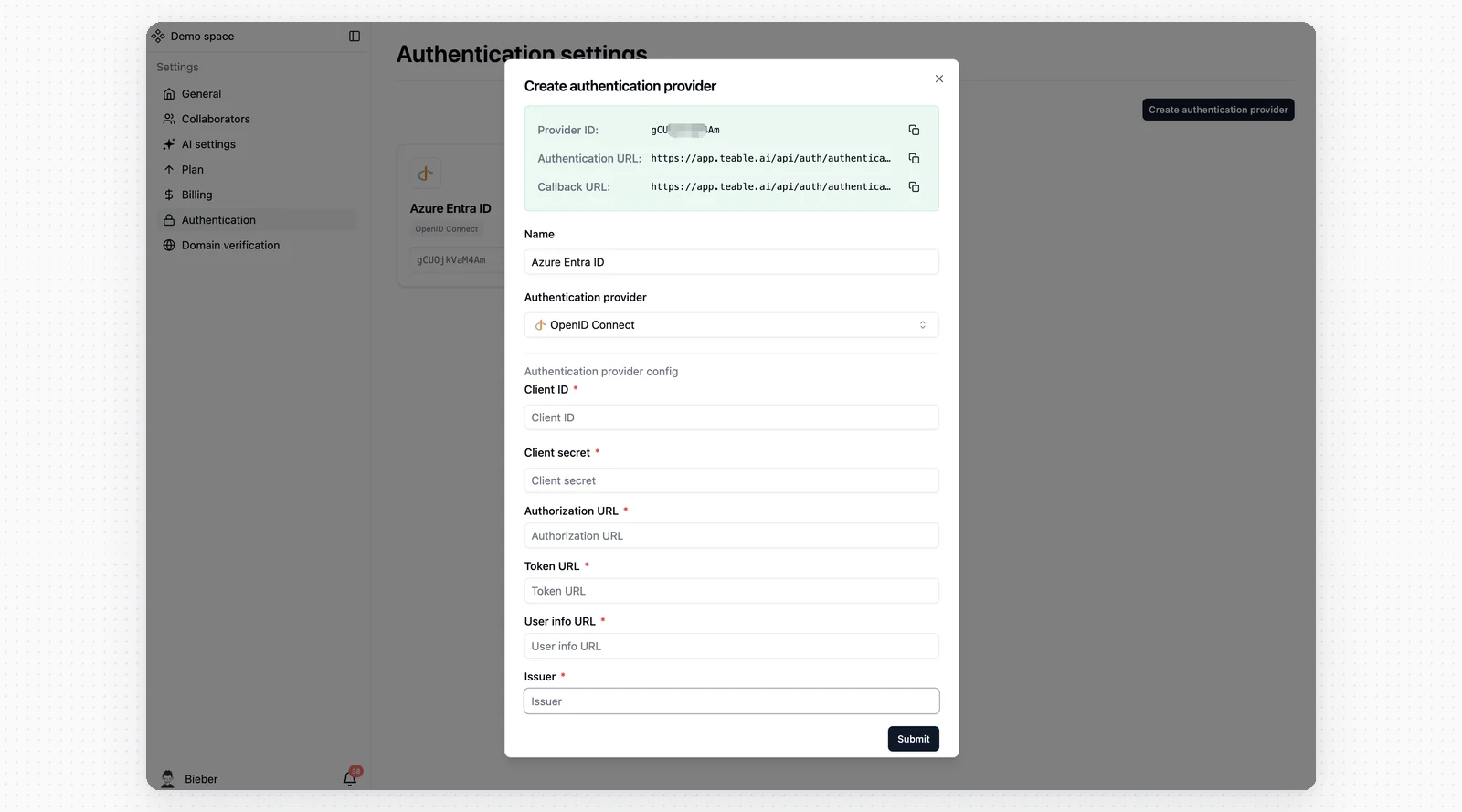
1. 进入 Teable 的 SSO 设置页面
2. 创建新的认证提供商，命名为 **Azure Entra ID** 并选择 **OpenID Connect**
<img src="https://mintcdn.com/teablecn/2fL6t4BkcrsPNqnE/images/docs/sso/2026-05-11-azure-entra-id-create-provider.png?fit=max&auto=format&n=2fL6t4BkcrsPNqnE&q=85&s=1445ea984d0be1c7c3095205208818ef" alt="Azure Entra ID SSO 配置步骤 1" className="docs-screenshot" width="1600" height="889" data-path="images/docs/sso/2026-05-11-azure-entra-id-create-provider.png" />

## 步骤 2：访问 Azure Entra ID

1. 登录你的 Azure 账户
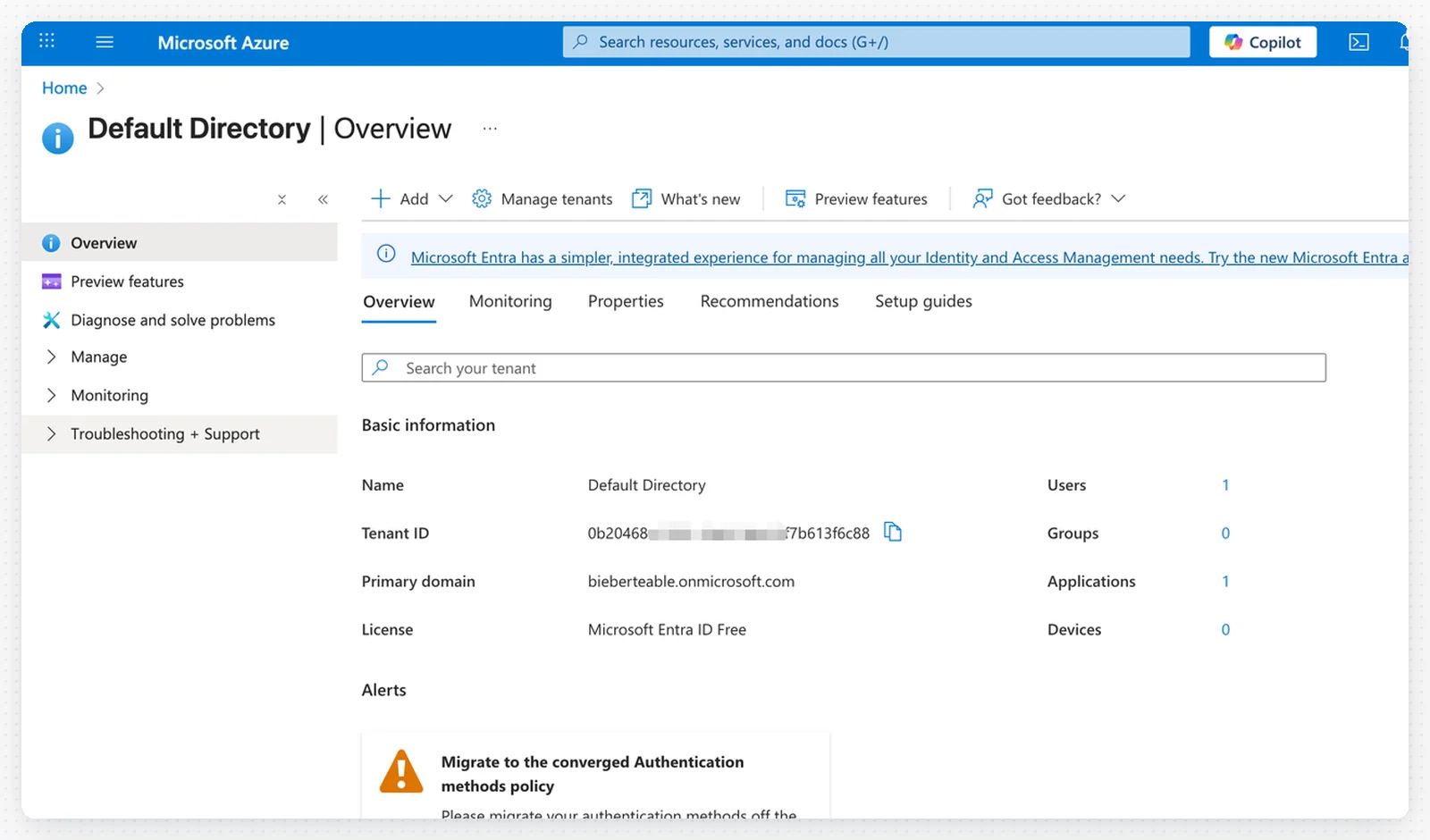
2. 导航至 **Microsoft Entra ID**（原 Azure Active Directory）

<img src="https://mintcdn.com/teablecn/2fL6t4BkcrsPNqnE/images/docs/sso/2026-05-11-azure-entra-id-open-entra-id.png?fit=max&auto=format&n=2fL6t4BkcrsPNqnE&q=85&s=81dfe786dfc577b5ce6f6af02e52db23" alt="Azure Entra ID SSO 配置步骤 2" className="docs-screenshot" width="1600" height="940" data-path="images/docs/sso/2026-05-11-azure-entra-id-open-entra-id.png" />

## 步骤 3：配置 OAuth 端点

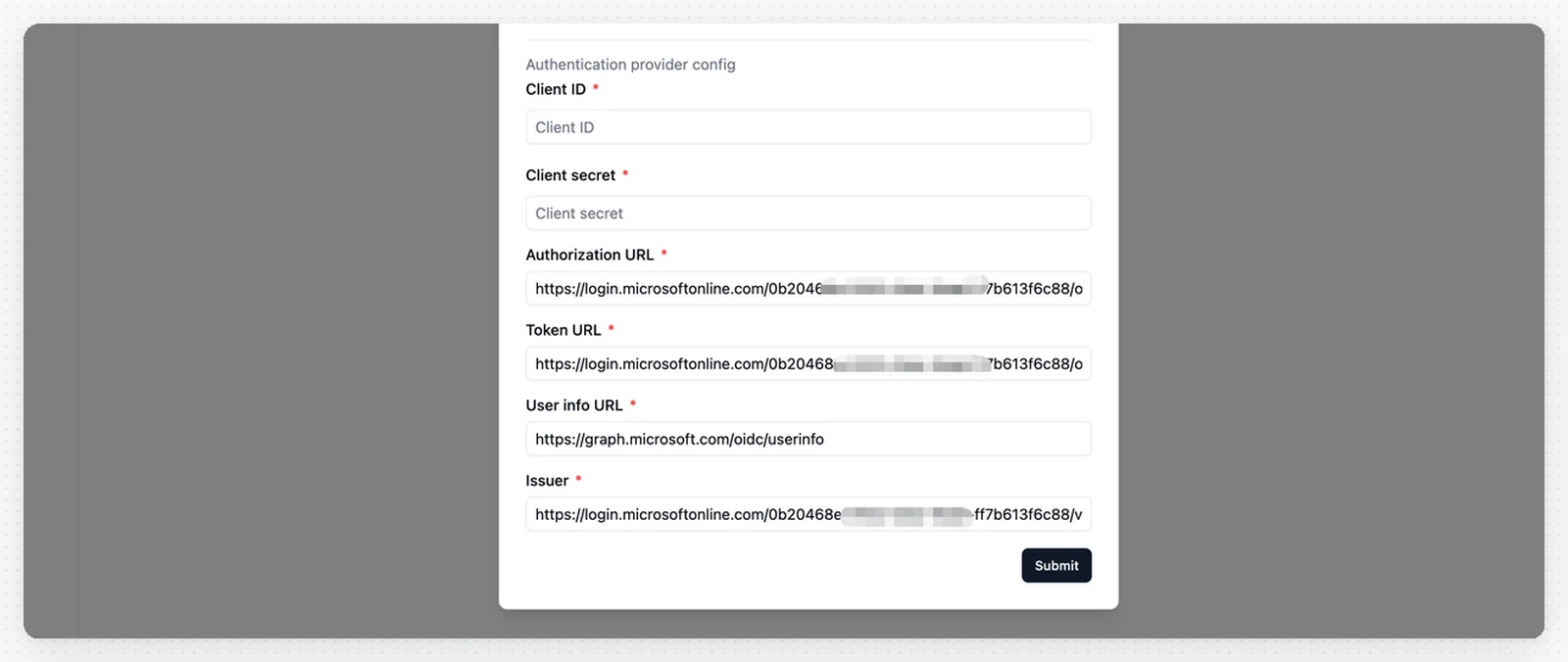
使用你的 **租户 ID** 在 Teable 中填写以下 OAuth 端点：

<img src="https://mintcdn.com/teablecn/2fL6t4BkcrsPNqnE/images/docs/sso/2026-05-11-azure-entra-id-oauth-endpoints.png?fit=max&auto=format&n=2fL6t4BkcrsPNqnE&q=85&s=72aa18f6ff230c3fbfdee9b7b32096cb" alt="Azure Entra ID SSO 配置步骤 3" className="docs-screenshot" width="1600" height="676" data-path="images/docs/sso/2026-05-11-azure-entra-id-oauth-endpoints.png" />

* **Authorization URL**（授权 URL）：`https://login.microsoftonline.com/_YOUR_TENANT_ID_/oauth2/v2.0/authorize`
* **Token URL**（令牌 URL）：`https://login.microsoftonline.com/_YOUR_TENANT_ID_/oauth2/v2.0/token`
* **User Info URL**（用户信息 URL）：`https://graph.microsoft.com/oidc/userinfo`
* **Issuer**（颁发者）：`https://login.microsoftonline.com/_YOUR_TENANT_ID_/v2.0`

<Note>请将 `_YOUR_TENANT_ID_` 替换为你的实际 Azure 租户 ID。</Note>

## 步骤 4：注册新应用程序

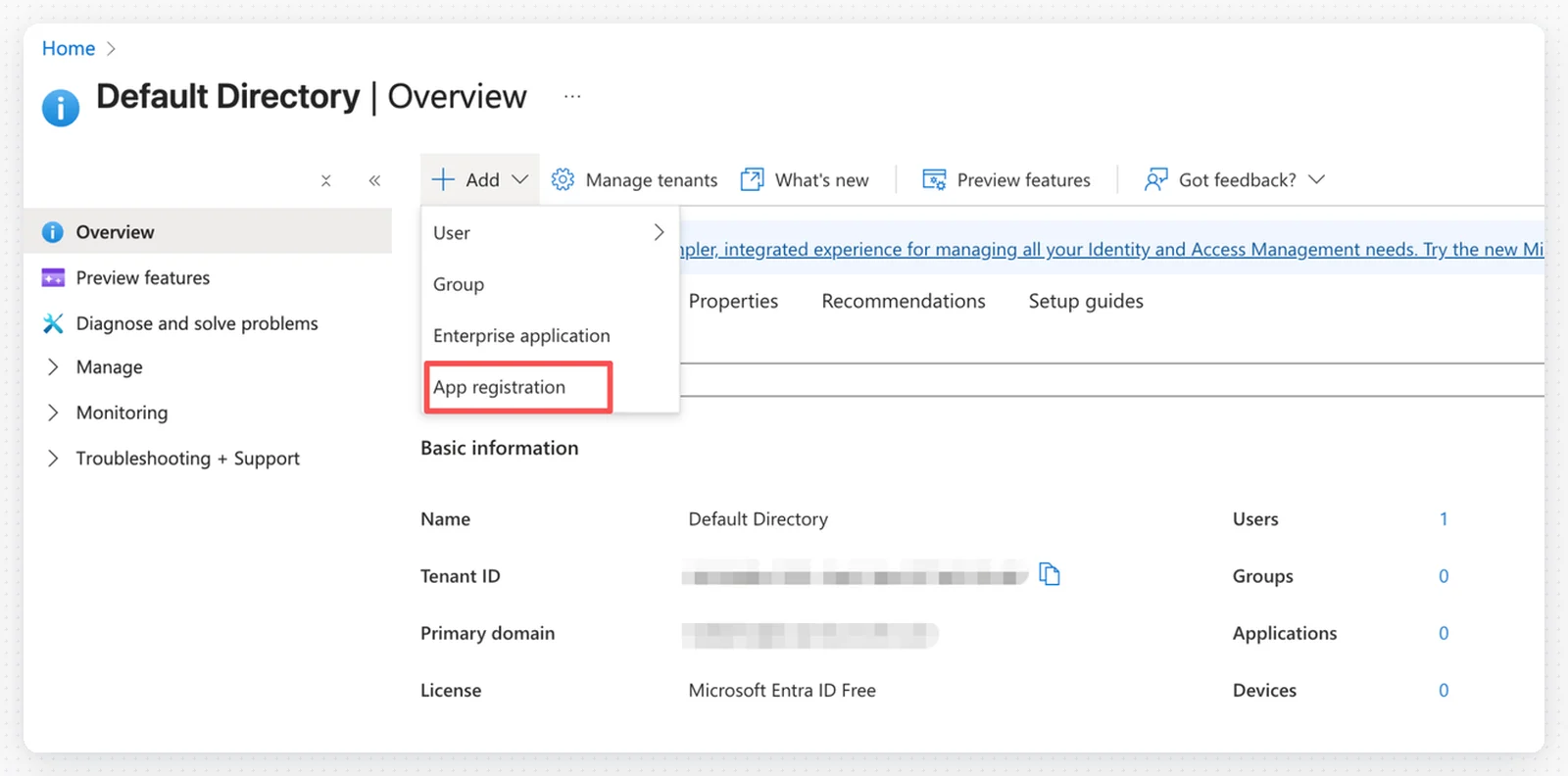
1. 在 Azure Entra ID 中，点击左侧菜单的 **应用注册**
2. 点击 **+ 新注册**

<img src="https://mintcdn.com/teablecn/2fL6t4BkcrsPNqnE/images/docs/sso/2026-05-11-azure-entra-id-app-registration-entry.png?fit=max&auto=format&n=2fL6t4BkcrsPNqnE&q=85&s=b35fe866107159c979016c6e17b89ea2" alt="Azure Entra ID SSO 配置步骤 4" className="docs-screenshot" width="1600" height="792" data-path="images/docs/sso/2026-05-11-azure-entra-id-app-registration-entry.png" />

## 步骤 5：配置应用程序注册

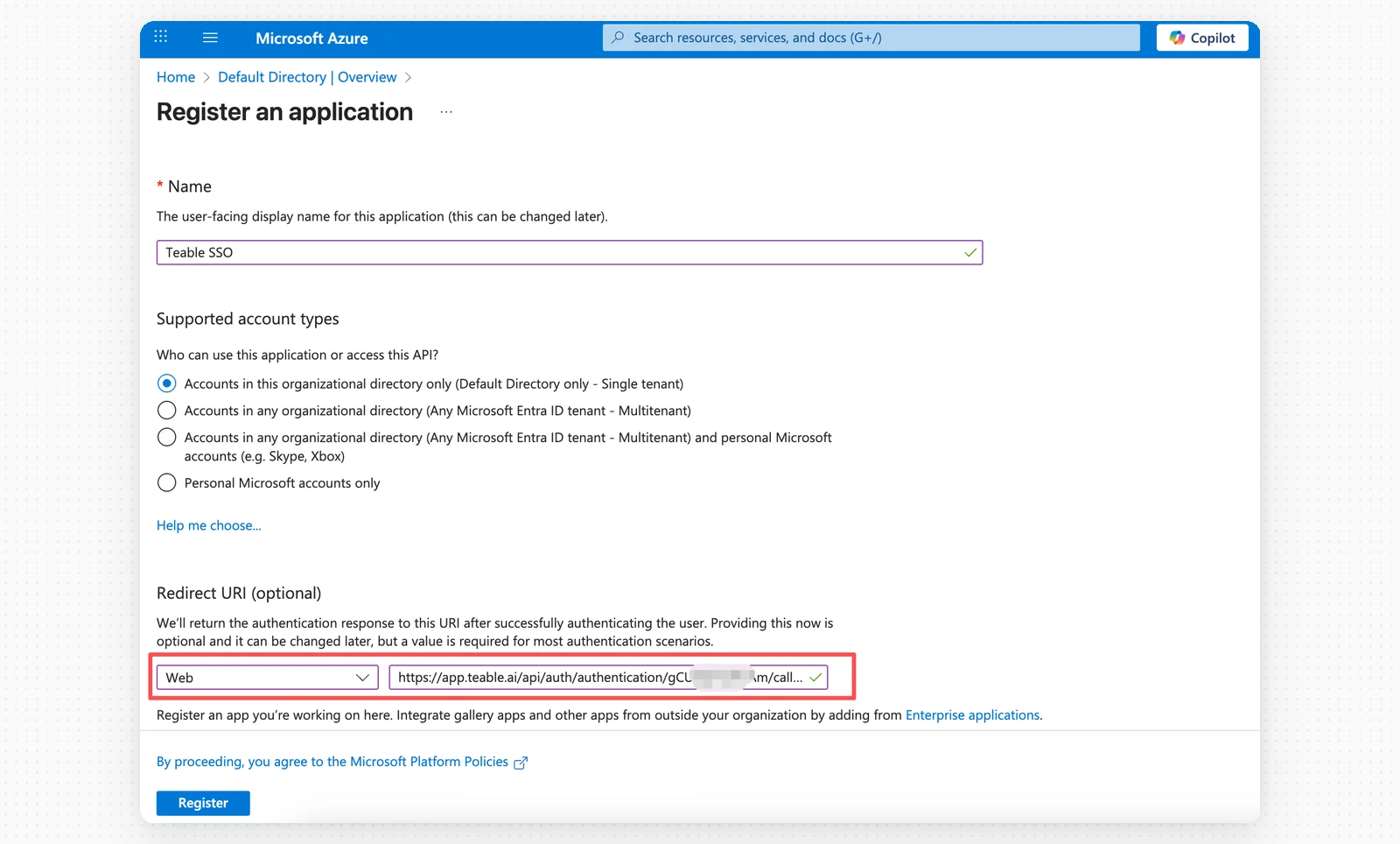
填写应用程序注册表单：

<img src="https://mintcdn.com/teablecn/2fL6t4BkcrsPNqnE/images/docs/sso/2026-05-11-azure-entra-id-app-registration-form.png?fit=max&auto=format&n=2fL6t4BkcrsPNqnE&q=85&s=9391791f31e9de69a371d4c49e4fca15" alt="Azure Entra ID SSO 配置步骤 5" className="docs-screenshot" width="1600" height="964" data-path="images/docs/sso/2026-05-11-azure-entra-id-app-registration-form.png" />

<img src="https://mintcdn.com/teablecn/2fL6t4BkcrsPNqnE/images/docs/sso/2026-05-11-azure-entra-id-redirect-uri.png?fit=max&auto=format&n=2fL6t4BkcrsPNqnE&q=85&s=05367942b8d61a4ed0f74d4a95fca3ae" alt="Azure Entra ID SSO 配置步骤 6" className="docs-screenshot" width="1600" height="428" data-path="images/docs/sso/2026-05-11-azure-entra-id-redirect-uri.png" />

* **名称**：Teable SSO
* **受支持的账户类型**：根据你的需求选择
* **平台**：Web
* **重定向 URI**：粘贴 Teable 中的**回调 URL**

点击**注册**以创建应用程序。

## 步骤 6：保存客户端 ID

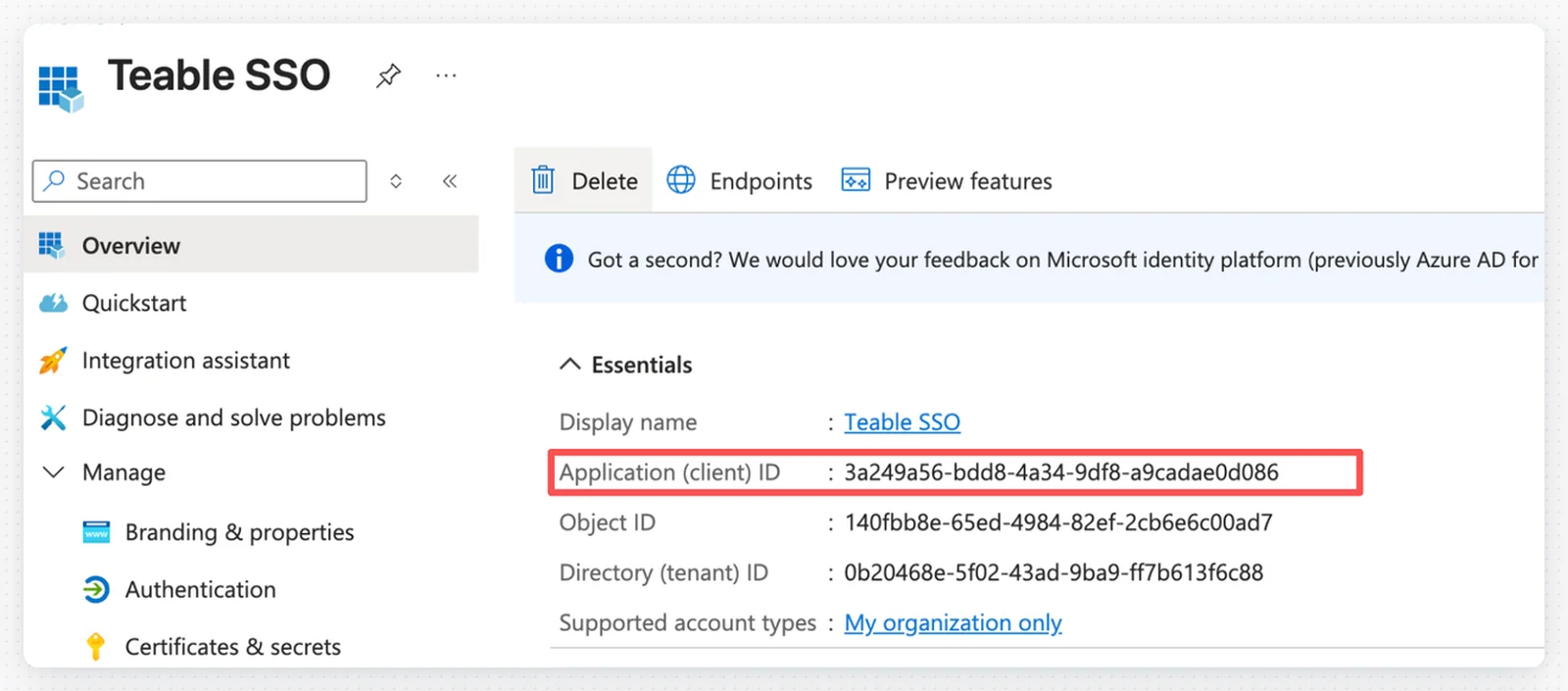
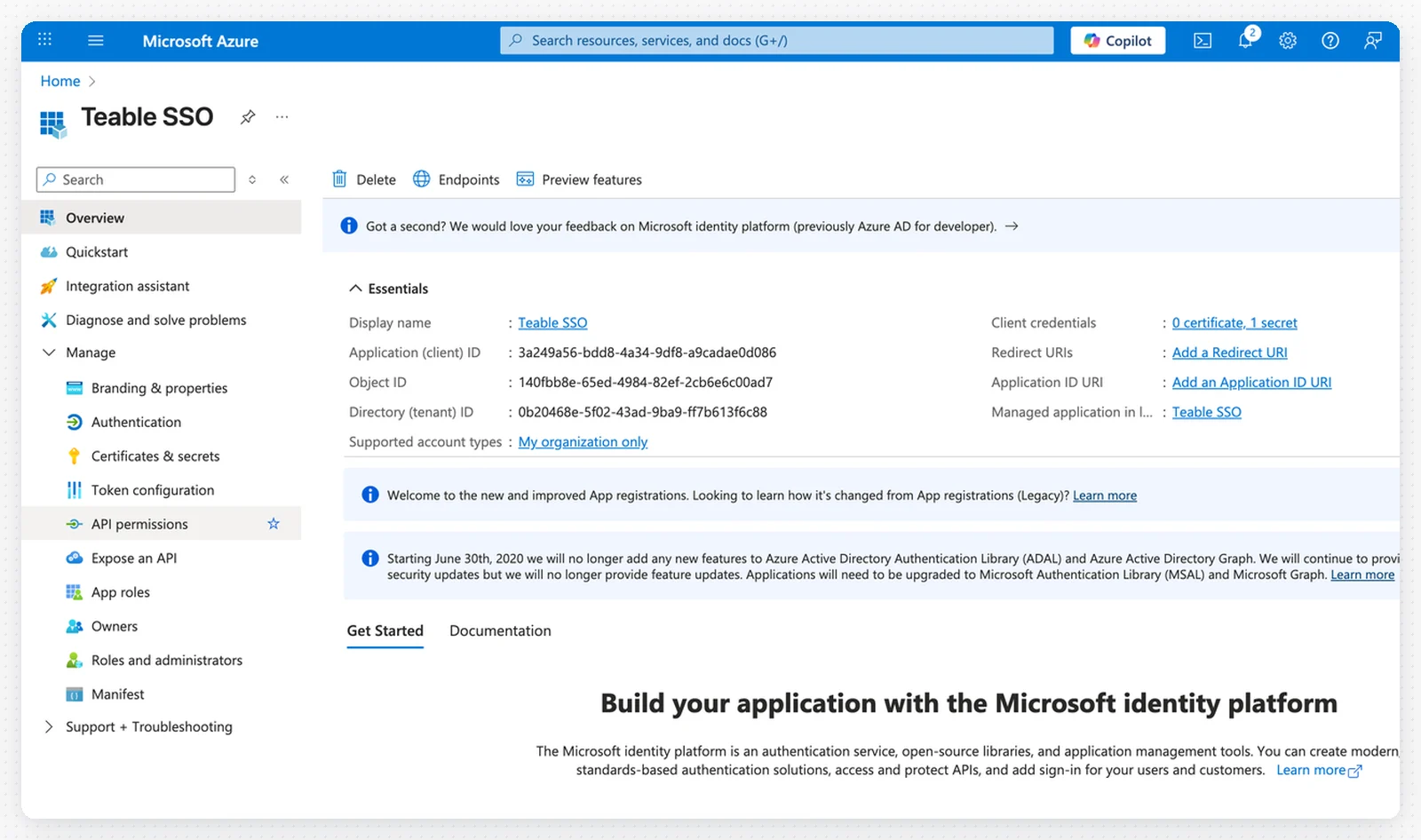
1. 从应用程序概述页面复制**应用程序（客户端）ID**

<img src="https://mintcdn.com/teablecn/2fL6t4BkcrsPNqnE/images/docs/sso/2026-05-11-azure-entra-id-application-client-id.png?fit=max&auto=format&n=2fL6t4BkcrsPNqnE&q=85&s=188610cb55bcd40954bc29a88e9328d9" alt="Azure Entra ID SSO 配置步骤 7" className="docs-screenshot" width="1600" height="705" data-path="images/docs/sso/2026-05-11-azure-entra-id-application-client-id.png" />

2. 将客户端 ID 粘贴到 Teable 的 SSO 配置中

<img src="https://mintcdn.com/teablecn/2fL6t4BkcrsPNqnE/images/docs/sso/2026-05-11-azure-entra-id-teable-client-id.png?fit=max&auto=format&n=2fL6t4BkcrsPNqnE&q=85&s=054af51f7e04f7ab292d01bd30233174" alt="Azure Entra ID SSO 配置步骤 8" className="docs-screenshot" width="1600" height="204" data-path="images/docs/sso/2026-05-11-azure-entra-id-teable-client-id.png" />

## 步骤 7：创建客户端密钥

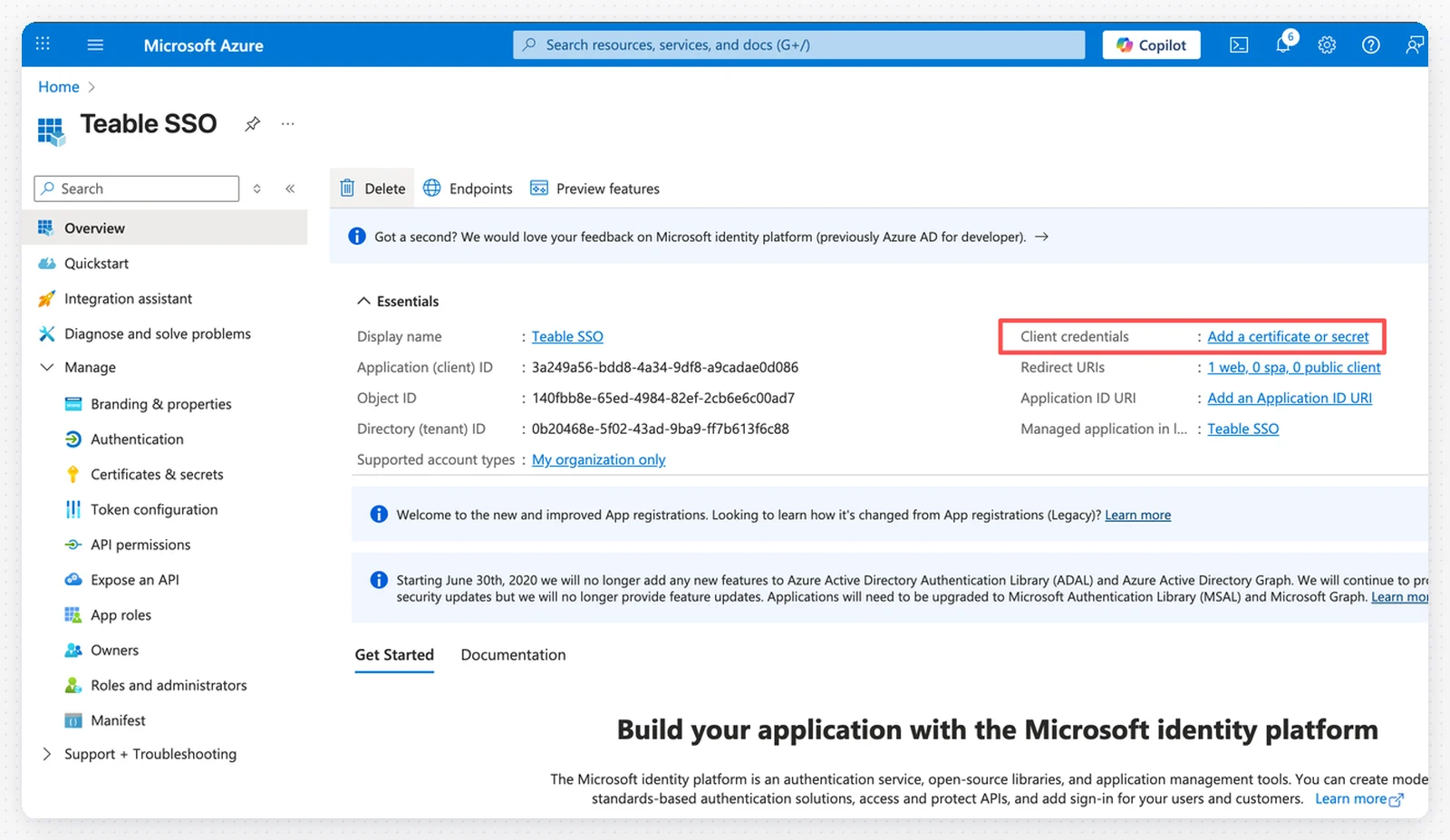
1. 在你的应用程序中，点击左侧菜单的**证书和密钥**

<img src="https://mintcdn.com/teablecn/2fL6t4BkcrsPNqnE/images/docs/sso/2026-05-11-azure-entra-id-certificates-secrets.png?fit=max&auto=format&n=2fL6t4BkcrsPNqnE&q=85&s=e832b5cebf55423cde301937bdfed371" alt="Azure Entra ID SSO 配置步骤 9" className="docs-screenshot" width="1600" height="927" data-path="images/docs/sso/2026-05-11-azure-entra-id-certificates-secrets.png" />

2. 点击 **+ 新客户端密钥**

<img src="https://mintcdn.com/teablecn/2fL6t4BkcrsPNqnE/images/docs/sso/2026-05-11-azure-entra-id-add-client-secret.png?fit=max&auto=format&n=2fL6t4BkcrsPNqnE&q=85&s=920ee1bd726ecd005c6fea76c8dcc1e1" alt="Azure Entra ID SSO 配置步骤 10" className="docs-screenshot" width="1600" height="892" data-path="images/docs/sso/2026-05-11-azure-entra-id-add-client-secret.png" />

3. 添加说明并设置过期时间
4. 点击**添加**
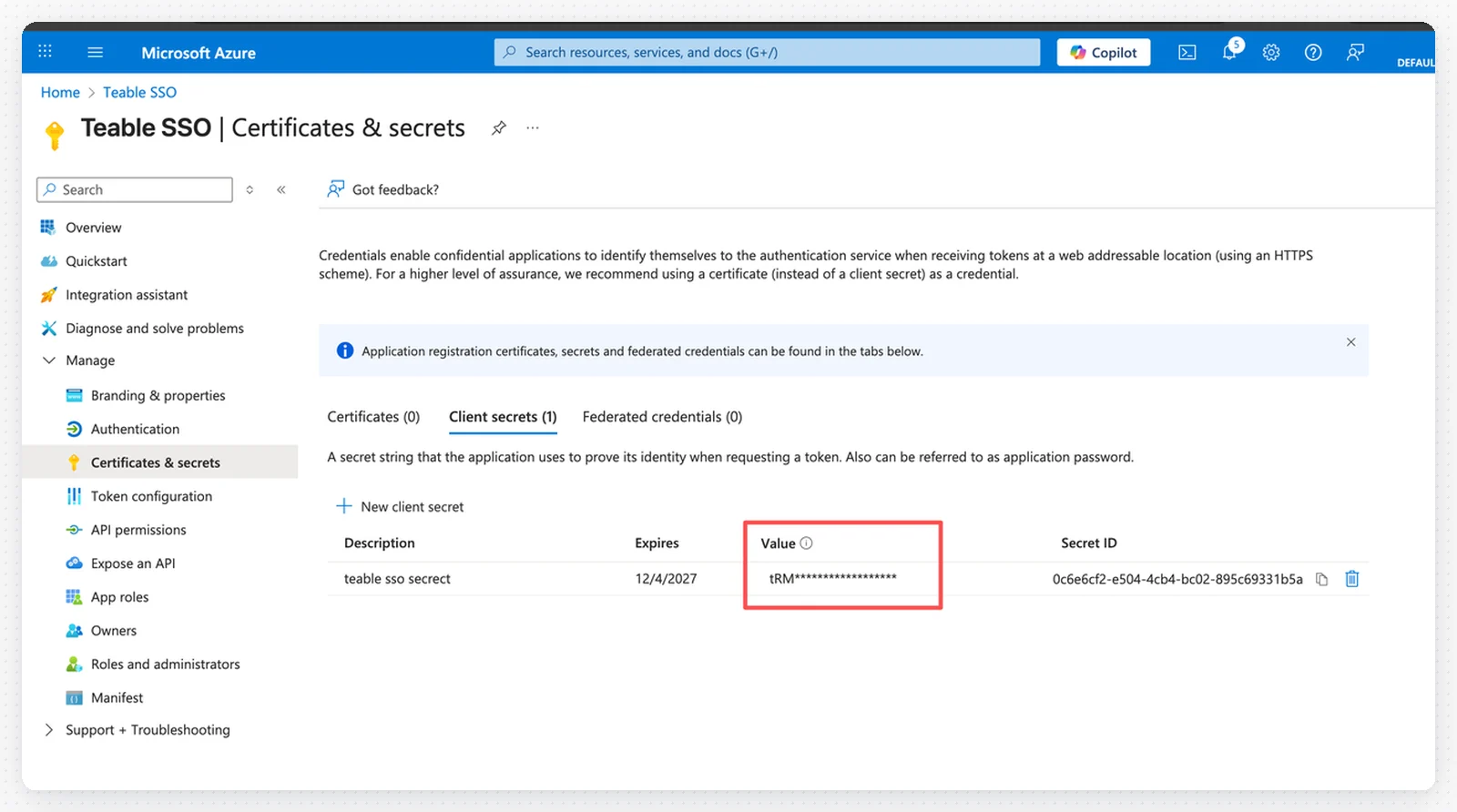
5. **重要**：立即复制密钥的**值**并将其保存为 Teable 中的客户端密钥

<img src="https://mintcdn.com/teablecn/2fL6t4BkcrsPNqnE/images/docs/sso/2026-05-11-azure-entra-id-client-secret-value.png?fit=max&auto=format&n=2fL6t4BkcrsPNqnE&q=85&s=36cf385e849d5a204837c3a6e128ea78" alt="Azure Entra ID SSO 配置步骤 11" className="docs-screenshot" width="1600" height="537" data-path="images/docs/sso/2026-05-11-azure-entra-id-client-secret-value.png" />

<Warning>密钥值仅显示一次，请务必立即保存。</Warning>

## 步骤 8：配置 API 权限

1. 点击左侧菜单中的 **API 权限**
2. 点击 **+ 添加权限**
<img src="https://mintcdn.com/teablecn/2fL6t4BkcrsPNqnE/images/docs/sso/2026-05-11-azure-entra-id-add-api-permission.png?fit=max&auto=format&n=2fL6t4BkcrsPNqnE&q=85&s=d4312e99198ed2db31f2a78d8a17c1db" alt="Azure Entra ID SSO 配置步骤 12" className="docs-screenshot" width="1600" height="946" data-path="images/docs/sso/2026-05-11-azure-entra-id-add-api-permission.png" />

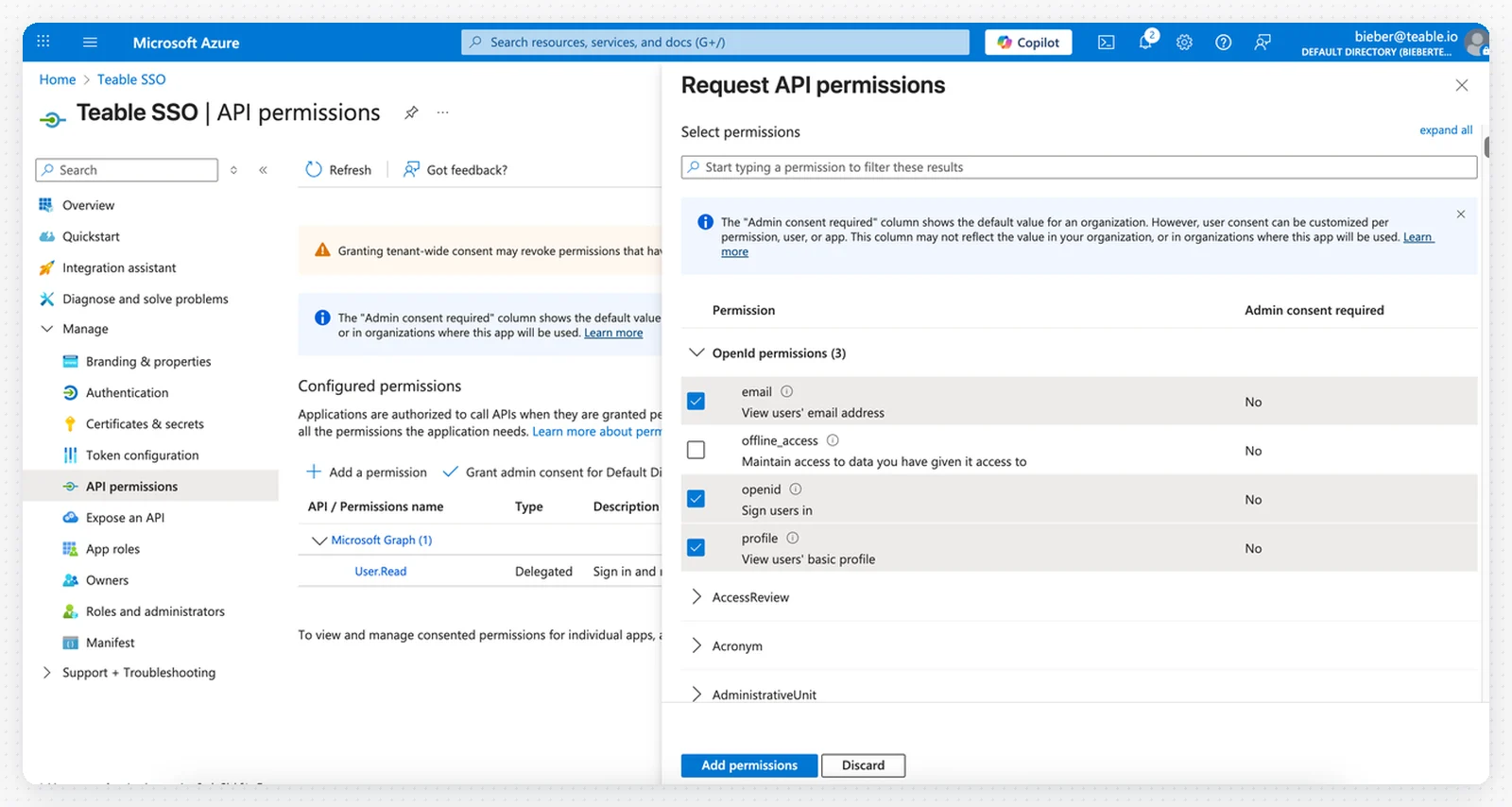
<img src="https://mintcdn.com/teablecn/2fL6t4BkcrsPNqnE/images/docs/sso/2026-05-11-azure-entra-id-microsoft-graph-permissions.png?fit=max&auto=format&n=2fL6t4BkcrsPNqnE&q=85&s=09df9fc81225a123819698c23bfec0b2" alt="Azure Entra ID SSO 配置步骤 13" className="docs-screenshot" width="1600" height="854" data-path="images/docs/sso/2026-05-11-azure-entra-id-microsoft-graph-permissions.png" />

3. 选择 **Microsoft Graph**
4. 选择**委托的权限**
5. 添加以下权限：
   * `email`
   * `openid`
   * `profile`
6. 点击**添加权限**
<img src="https://mintcdn.com/teablecn/2fL6t4BkcrsPNqnE/images/docs/sso/2026-05-11-azure-entra-id-delegated-permissions.png?fit=max&auto=format&n=2fL6t4BkcrsPNqnE&q=85&s=92702f413c47014cdc88b95619c4f285" alt="Azure Entra ID SSO 配置步骤 14" className="docs-screenshot" width="1600" height="980" data-path="images/docs/sso/2026-05-11-azure-entra-id-delegated-permissions.png" />

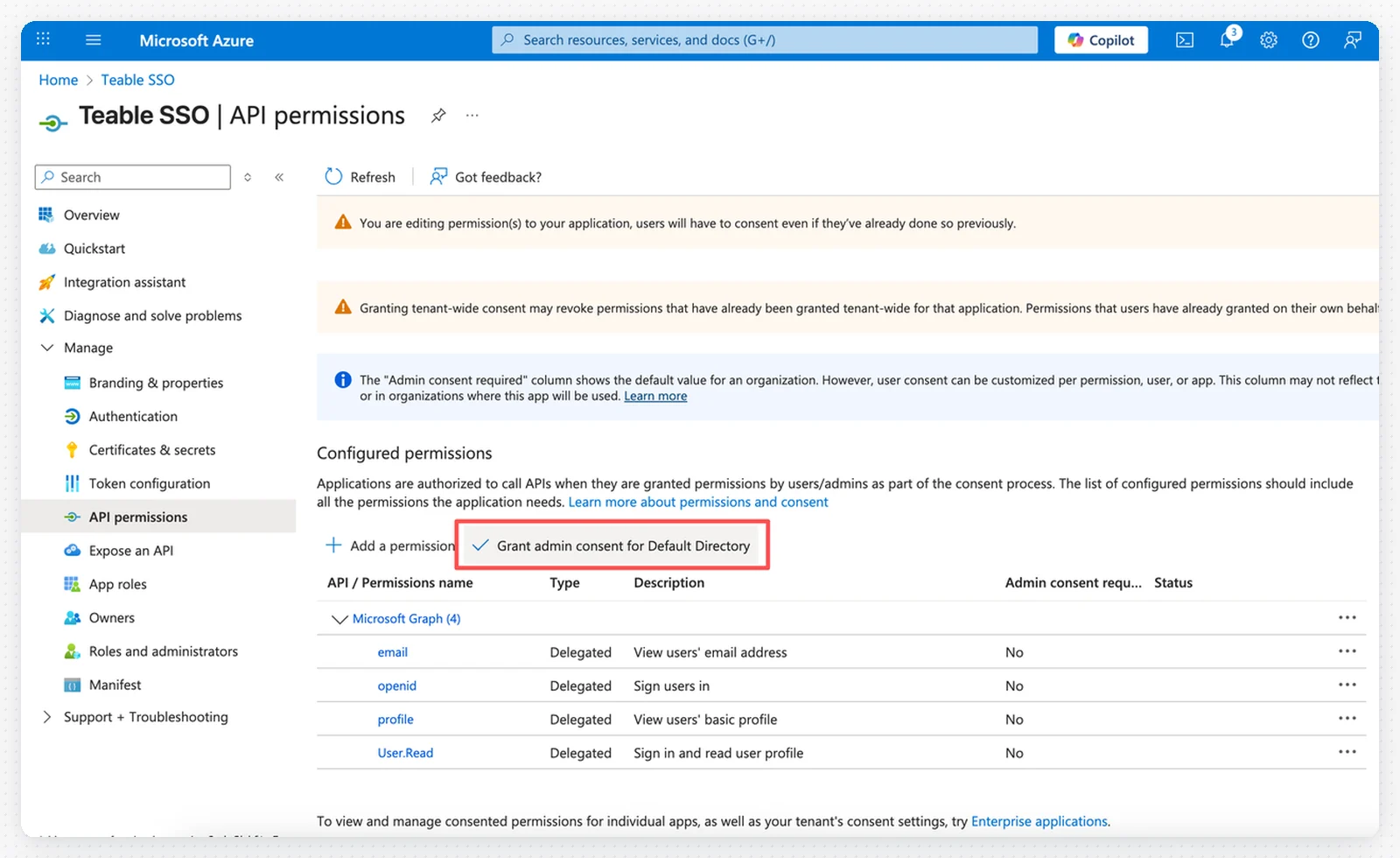
7. 点击**为 \[你的目录] 授予管理员同意**按钮以批准权限

## 步骤 9：测试 SSO 登录

你有两种方式启用 SSO 登录：

**方式 1：直接使用认证 URL**

* 直接使用认证 URL 作为你的 SSO 登录 URL

**方式 2：域名验证**

1. 点击左侧菜单中的**域名验证**
2. 验证你的自定义域名
3. 访问 [https://app.teable.cn](https://app.teable.cn)
4. 点击 SSO 登录按钮
5. 输入已验证域名下的电子邮件地址以登录